Writes like a list. Works like a graph.
Node Paper is bullets: nested, checked off, reordered. Underneath, every bullet is a point on a map, and every link you make is a road between them. Here’s what that gets you, and how each part works.
A list on top, a graph underneath #
You write nested bullets, like any outliner. Underneath, each bullet is a node in a graph: putting one under another connects them, and so does every link you make with @. Links point at the bullet itself, not at where it sits, so the structure is there without you building it.
- One bullet, many places. A to-do can live in a project and point at a store without being copied into either.
- Every page knows what points at it. Open anything and you see each bullet that links there, from every list, with nothing to keep up to date.
- Move things freely. Reorder, nest, or move a bullet to another list, and its links keep working.
- Structure as a side effect. You only ever write lists. The map builds itself as you link.
Notes, to-dos and numbered lists #
A bullet can be a note, a to-do, or a step in a numbered list.
- Notes are things to know: an address, an idea, which zone leaks. No checkbox.
- To-dos are things to do. They have a checkbox, and they’re what the “open” counts count, on lists and on every page that collects them.
- Numbered lists are for when order matters, like steps. The graph draws them in order, as a column beside the bullet they’re under.
Switch a bullet with the checkbox button above the keyboard, or by typing [], - or 1. at its start. A new bullet copies the kind of the one next to it, so a list keeps its style as you type.
@ links: tags with a page behind them #
Type @ in any bullet and pick what it points at, or make something new. It’s like tagging, except every tag is a page: open it and you’ll find every bullet that links there (open to-dos first), with its own notes and facts.
Links show in the colour of what they point at, so a place reads differently from a person at a glance. A bullet that’s nothing but a link stands in for the thing it links to: send a to-do to today’s list that way, check it off there, and it’s checked off in its own list too.
Pages and kinds: model anything #
Anything you link to has its own page: a store, a friend, a car, a client, a room. Give pages a kind and they gather in one place. Places and People come built in; make your own, like Rooms, Projects, Cars or Suppliers.
Each kind gets a colour and an icon in links and in the graph, a list of its pages with their open to-dos, and if you pin it, a tab of its own. Node Paper also notices how you link to things: if you keep putting things “in the Garage”, it suggests the Garage is a room.
Relations: what a link means #
The words around a link say what it means, so Node Paper labels each link with them:
- “Buy elbows at Hardware store” is buy at
- “Waiting on Alex for the quote” is waiting on
- “Sam owes me lunch” is owes
- “Alex, cofounder of Acme” is cofounder of
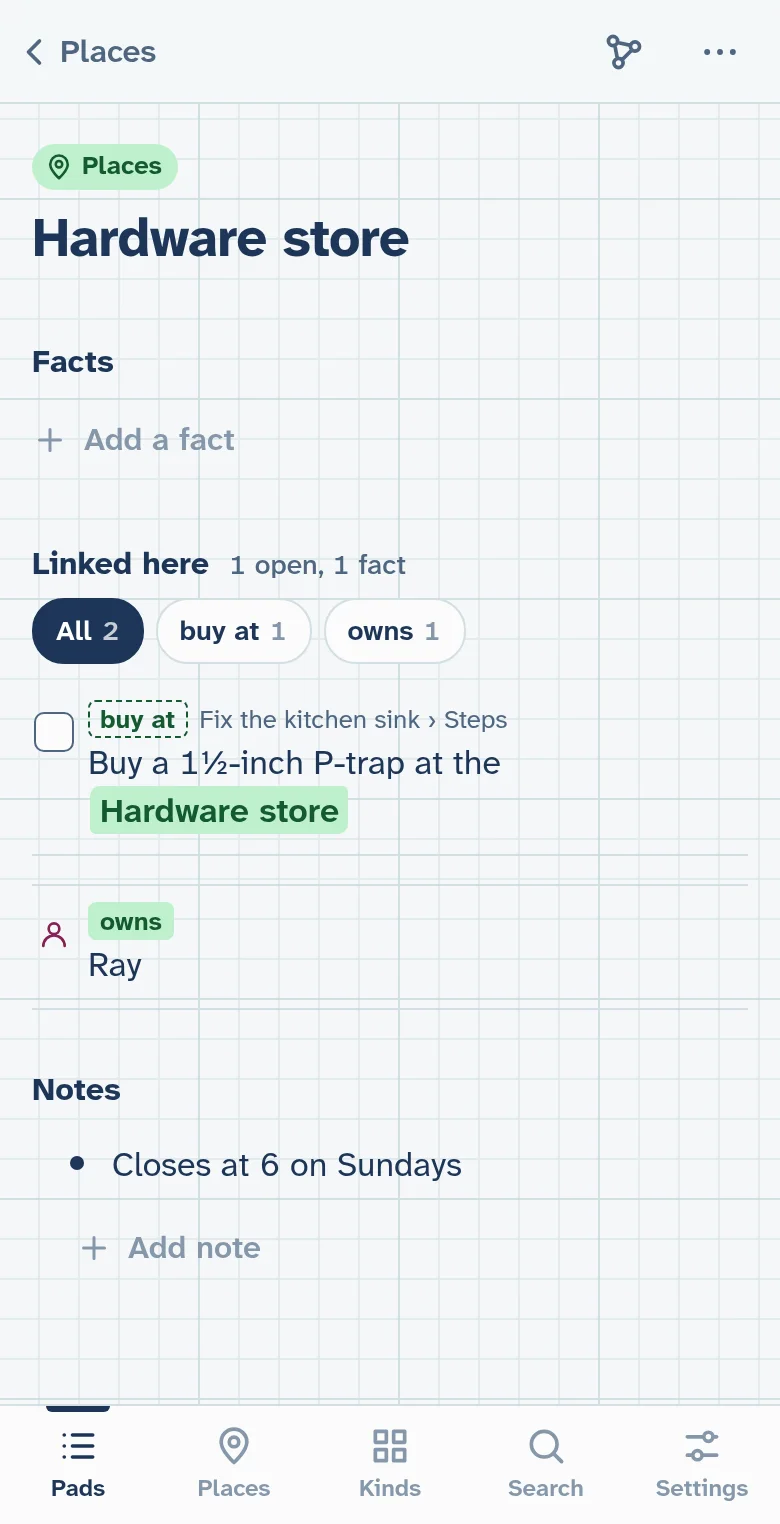
Pages sort what links to them by these labels, so the Hardware store can show just what you need to buy there, and the graph writes them on its links. They’re worked out on your device, from your own words.
Keeping a relation
When a label is one you’ll use again, keep it: tap it, then “Keep or rename”. A kept relation becomes part of your own vocabulary: you can add the other ways you say it, so pick up at and grab at count as buy at; you can put it on any link by hand; and you can use it in facts. Labels are dashed while they’re only suggestions, like grab at, and filled in once you keep them, like buy at.
Facts #
Some things you just want to state: Ray owns Hardware store, Alex cofounder of Acme. A fact sits on the page of what it’s about, shows on the page of the other side too, and the graph draws it as a labelled link.
Add one from a page’s menu (Add a fact), or turn a note into a fact about the bullet it’s under from the note’s menu.
The graph view #
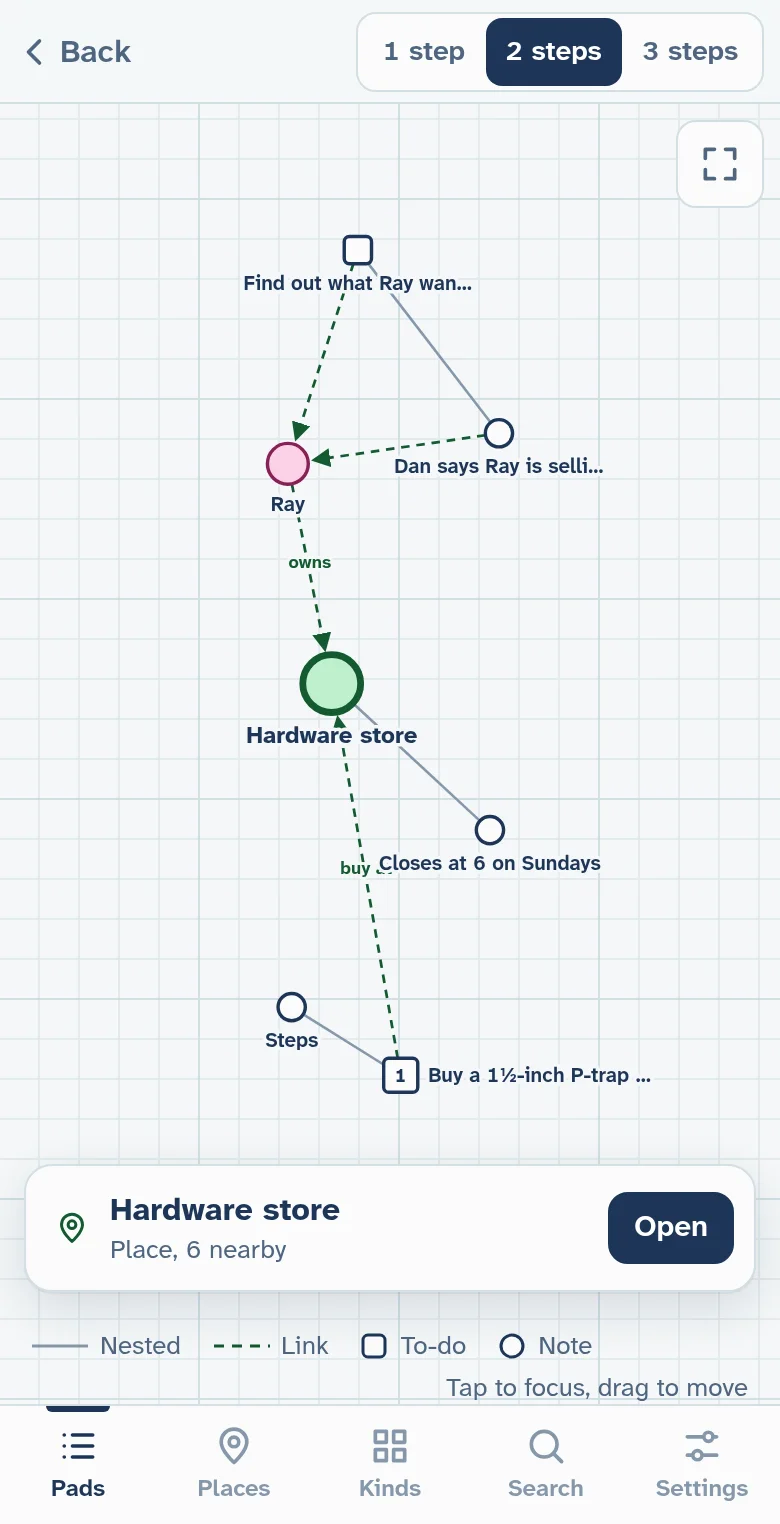
From any list or page, the graph button shows it with everything around it, one, two or three steps out: to-dos as boxes, notes as circles, pages in their kind’s colour, and links as dashed lines with their relation written on them.
Use it to see what you didn’t plan: a person tied to two projects, a store three lists depend on, the to-do you forgot was waiting on someone. Tap a bullet to move to it, drag to rearrange, and zoom in to read the labels of the bullets further out. It’s for looking around; you do the writing in your lists.
From a to-do list to a map: an example #
None of this needs planning. You make lists the way you always would, add a link now and then, and the map grows underneath. Here’s how that pays off.
-
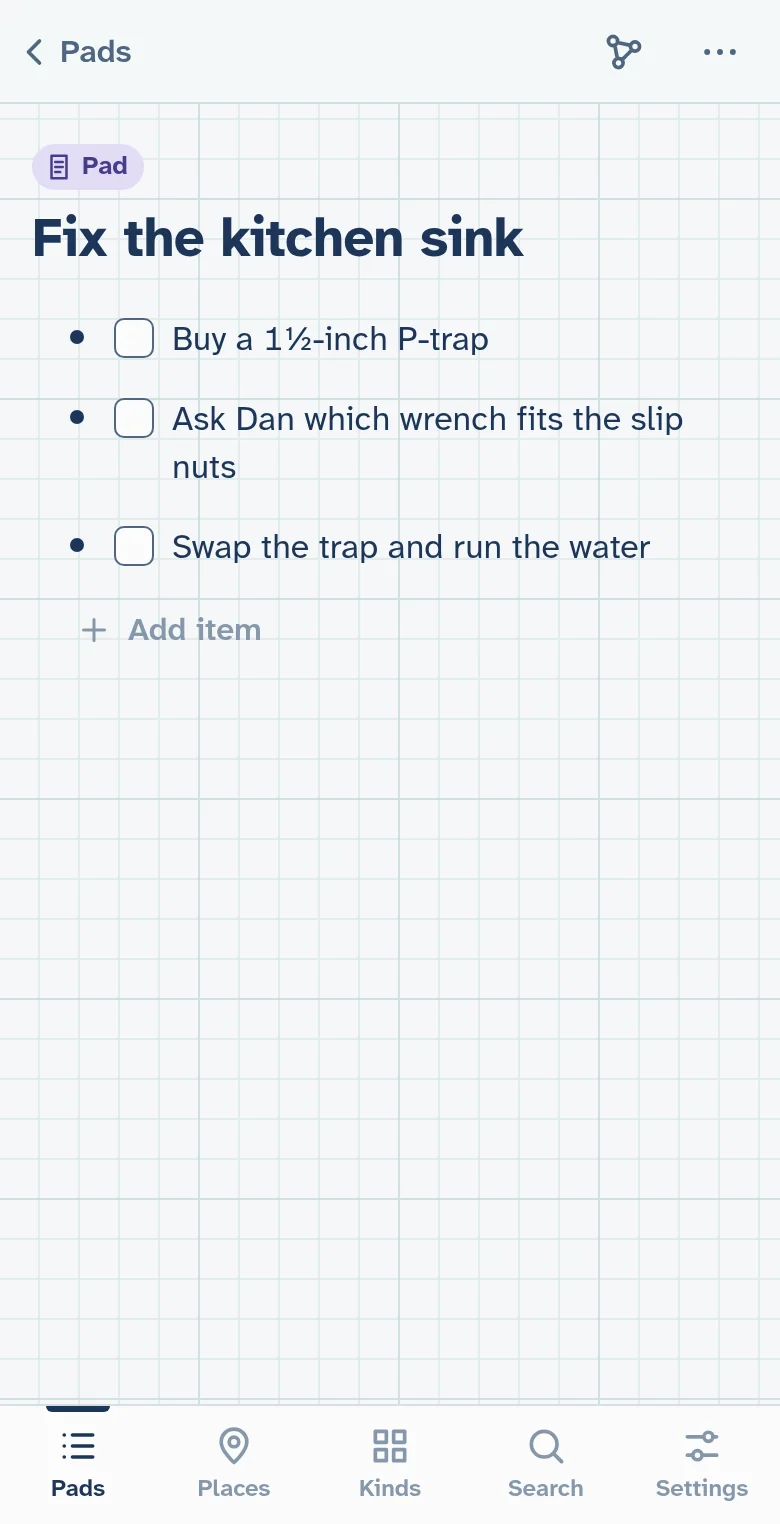
Saturday: a to-do list
The kitchen sink is leaking. You jot down what to do. It’s a to-do list, and there’s nothing else to set up.
-
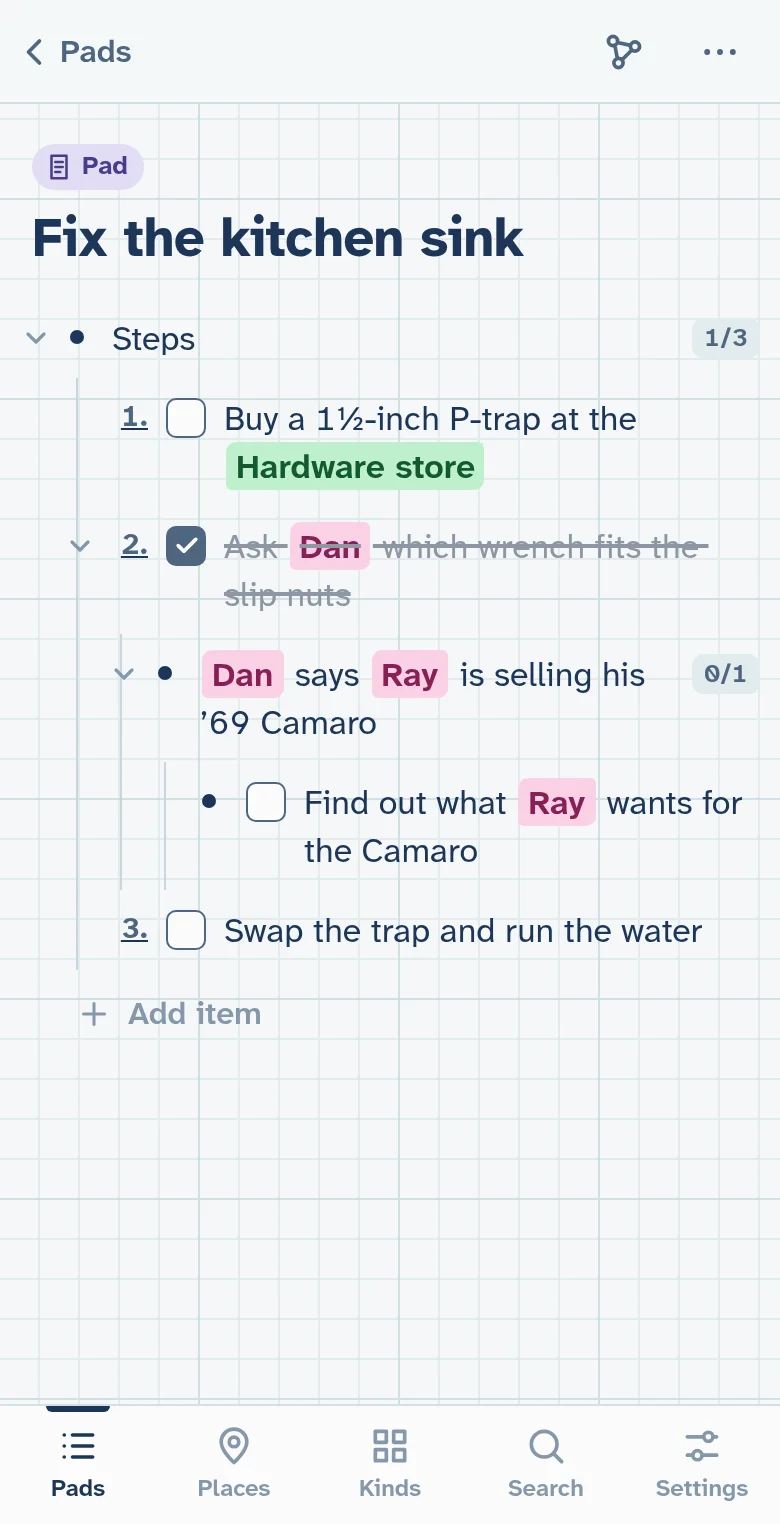
Linking as you go
You put @ in front of the Hardware store and your brother Dan. When you call Dan, he mentions that Ray, who owns the hardware store, is selling his ’69 Camaro. You jot that under the call, with a to-do to find out the price. On Ray’s page you add a fact: Ray owns Hardware store.
-
Two weeks later, at the store
You’re back at the hardware store for something else, and open its page. The P-trap is still on it, and so is Ray, because Ray owns the place. One tap on Ray and there it is: find out what he wants for the Camaro.
-
The map you didn’t draw
The graph from the Hardware store, two steps out, shows the whole chain: the store, Ray who owns it, and the Camaro to-do that points at him. It was never a plan, just a few links made while writing a to-do list.
And the rest #
- Works offline. Everything lives on your device, so nothing waits on a network. Install it to your home screen like an app.
- Paste in, copy out. Paste a markdown list and it keeps its nesting, checkboxes and numbers. Copy a bullet, or a bullet and everything inside it, back out as markdown.
- Search across everything, by any word in a bullet.
- Vim keys on a computer, if you like: normal and insert mode, yank and put, undo, and jumping back.
- Trash. Deleted bullets wait in the trash, with everything inside them, until you empty it.
- Backups. Export everything to a file, and import it again, from Settings.